
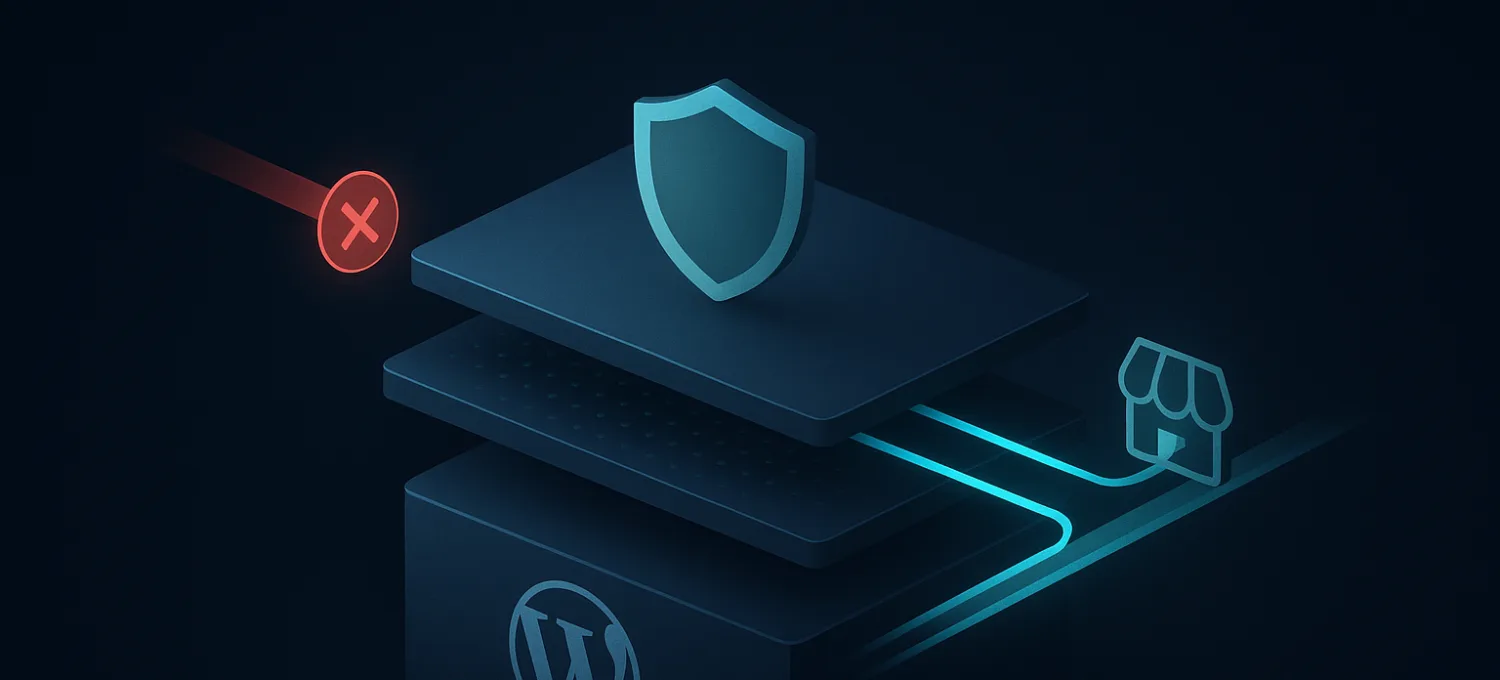
You open the site and get 403 Forbidden. The homepage might fail. The login page might fail. Sometimes only checkout breaks, or only /wp-admin/ locks up. That is what makes this error so frustrating. The site often is not dead. It is refusing access.
On WordPress and WooCommerce, a 403 usually comes from one of two places. Either the origin server is denying the request because a local rule is wrong, or something in front of the server is blocking the request before WordPress ever gets a chance to respond. If you mix those two paths together, you lose time and often make the problem worse.
Your website usually is not broken. It is following a rule that has locked someone out.
What a 403 Forbidden Error Actually Means
A 403 Forbidden response is different from a 404 or a 500.
- A 404 says the resource cannot be found.
- A 500 says the server failed while trying to handle the request.
- A 403 says the system understood the request and deliberately denied it.
That distinction matters because it narrows the search. You are not looking for a crashed site first. You are looking for a rule, permission, or filter that says no.
On a live WordPress site, that denial can come from several places:
- The web server denies access because file permissions or a local access rule are wrong.
- Apache rewrite logic in
.htaccessblocks something it should not. - A plugin or security layer changes behavior after an update.
- A CDN or WAF rejects the request before it reaches the origin.
- A browser session or stale cache keeps showing an old denied response.
If you run WooCommerce, the symptoms are often messy. Product pages load, but checkout returns 403. The front end works, but /wp-admin/ does not. One person can browse from mobile data, while office Wi-Fi gets denied. Those patterns usually tell you this is not a generic “site down” problem.
A 403 is a denial problem, not a disappearance problem.
The traffic path matters here. The request passes through the browser, DNS resolution, any proxy or CDN, and only then the web server and WordPress stack. If you want the quick mental model for that path, what a reverse proxy does in front of the origin is the useful starting point.
The first real question is simple: who returned the 403?
The First Five Minutes: Quick Diagnostic Checks
Before touching server files, do a fast triage pass. These checks are low risk, quick to reverse, and useful for separating browser noise from real server behavior.
Check whether it is only happening to you
Open the site in an incognito window. Then test from a different browser and, if you can, a different network.
If the error disappears, you may be dealing with cached responses, a sticky session issue, or a security rule tied to your IP or cookies. If it fails everywhere, the problem is broader.
Clear browser and site cache
Browsers and edge caches can hold denied responses longer than people expect. WordPress cache plugins can also keep serving a blocked page after the underlying problem is fixed.
Do three things:
- Clear browser cache and cookies for the site.
- Purge site caching if you use a caching plugin.
- Purge CDN cache if the site is behind one.
Look for obvious request mistakes
This sounds basic, but it catches a surprising number of false alarms.
- Check the exact URL path.
- Test the homepage and a known public page.
- Try a direct asset such as an image or CSS file.
If one URL fails and another works, the scope is immediately smaller.
If one browser, one path, or one network behaves differently, do not start editing server files yet.
Temporarily rule out plugin conflict
If you still have FTP or hosting file access, rename the plugins directory temporarily. That disables all plugins at once without needing wp-admin access.
If the 403 disappears, put the directory name back and isolate the offending plugin one by one. Security plugins, redirect tools, and anything that modifies rewrite behavior are common suspects.
Confirm you are hitting the intended site
Migrations, DNS cutovers, or partial rollouts can leave you testing the wrong origin without realizing it. The symptom is usually inconsistency. One person sees the old site. Another sees a 403. Admin works from one region but not another.
A quick first-pass checklist should answer three questions:
| Question | Why it matters |
|---|---|
| Is the issue global or local? | Separates cache or IP-based blocks from broad failure |
| Is it path-specific? | Points toward rewrites, permissions, or WAF rules |
| Did anything just change? | Plugin updates, migrations, and policy changes are common triggers |
If these checks do not narrow it down, move into the filesystem and request-routing layer.
Fixing the .htaccess File
On Apache-based WordPress hosting, .htaccess is often the first real file worth checking when a 403 appears on a site that worked yesterday. It acts like a traffic gatekeeper. It rewrites URLs, controls access behavior, and can block legitimate requests when a plugin adds a bad rule.
How the failure usually shows up
The pattern is usually uneven rather than total.
You might see category pages load while product URLs fail. Login may work, but media files return 403. A security plugin update, redirect plugin change, or bot-blocking rule can insert directives that are stricter than intended.
Common warning signs include:
- Only rewritten URLs fail while direct file requests still work
- Checkout or account pages break after plugin changes
- Admin access vanishes after a hardening change
- Static assets return 403 because hotlink or referrer rules are too broad
Sometimes site owners respond by blocking more traffic. That often compounds the problem. If you are considering that route, it helps to first understand the tradeoffs in blocking IP addresses without causing more collateral damage.
Safe reset procedure
The cleanest fix is a rename-and-regenerate process.
- Connect over FTP or your host’s file manager and go to the WordPress root.
- Enable hidden files if needed so
.htaccessis visible. - Rename
.htaccessto.htaccess.bak. - Test the site.
- If pages start loading, the old rules were the problem.
- If you can access WordPress admin, go to Settings > Permalinks and click Save Changes so WordPress generates a fresh default
.htaccess.
That is the least destructive way to repair it. You are not deleting anything. You are isolating the old rule set and letting WordPress rebuild the default rewrites.
After regeneration, compare the new file with .htaccess.bak. Look for obvious deny rules, malformed rewrites, or leftovers from plugins you no longer use.
Keep the backup until the site has survived real traffic, not just one successful page load.
If the site runs on NGINX, do not waste time hunting in .htaccess. The same symptoms may come from the main server configuration instead.
Correcting File Permissions
Permissions are a boring but high-probability cause that people skip because they assume something more dramatic must be wrong. On WordPress, they matter because the web server process needs permission to enter directories and read files. If it cannot, it returns 403 even though the files are physically there.
The practical baseline for most standard WordPress setups is:
- Directories: 755
- Files: 644
Why permissions break WordPress
This often appears after migrations, bulk uploads, manual file replacements, or plugin behavior that changes ownership or mode bits in the wrong places.
The result is predictable:
- Directories without execute permission cannot be traversed by the web server.
- Files without read permission cannot be served.
- Mixed permissions deep in subfolders cause partial failure, where some pages work and media uploads or plugin assets do not.
That is why permission-related 403s often look inconsistent. The homepage might render from cache while /wp-content/uploads/ images fail. Admin may load, but theme assets return denied responses.
If the server cannot read the file or enter the directory, WordPress never gets a chance to help.
What to set and how to apply it
A practical reset process looks like this:
- Connect with FileZilla or your hosting file manager.
- Back up the site first.
- Select the WordPress root such as
public_html. - Apply 755 to directories only, recursively.
- Apply 644 to files only, recursively.
- Test the site in an incognito window.
Here is the quick reference:
| Item | Typical permission | Why |
|---|---|---|
| Directories | 755 | Lets the server traverse folders safely |
| Files | 644 | Lets the server read files without broad write access |
A few rules matter here:
- Do not use
777as a shortcut. - Do not forget subdirectories.
- Do not assume one fixed file means the whole tree is clean.
On busy WooCommerce sites, permission problems often surface during peak activity because more paths get exercised. Admin AJAX calls, media loading, exports, and plugin assets all touch different parts of the tree.
If permissions are correct and the 403 still appears, stop editing the origin for a moment. The next likely source may not be on the server at all.
When the Edge Layer Is Blocking Too Aggressively
A lot of 403 guides still assume the web server is the only gatekeeper. That is outdated. Many WordPress and WooCommerce sites sit behind a CDN, WAF, or bot-mitigation layer that can deny the request before Apache or NGINX ever sees it.
That edge layer is useful, but it can also be tuned badly.
What edge-level blocking looks like
These are common production patterns:
- A store runs a promotion and traffic spikes.
- Bot protection sees a burst of add-to-cart or checkout attempts from shared networks.
- The edge starts challenging or blocking real shoppers.
- A site owner fails login a few times and then gets a 403 on
/wp-admin/because the sequence looked like brute-force behavior.
On WooCommerce, these cases are easy to misread because they overlap with normal store activity:
- Fake-order traffic and real buyers can hit the same flows
- Login abuse and legitimate password mistakes can look similar
- Scrapers and comparison-shopping tools may resemble aggressive browsing
- Flash-sale behavior can resemble bot traffic if rules are too blunt
The site is not necessarily down. It may just be filtering the wrong people while trying to defend itself.
How to tell edge blocking from origin blocking
This is the diagnostic split most basic guides miss.
Start with the response details and operational context. If the 403 page looks branded by your CDN or security provider, that is a clue. If the block is tied to one geography, one office connection, or one user behavior pattern, that is another. If nothing in server logs matches the denied request time, the request may never have reached the origin.
Use this comparison:
| Signal | More likely origin issue | More likely edge issue |
|---|---|---|
| Problem began after plugin or file change | Yes | Possible |
| Problem tied to one IP or region | Less common | Common |
| Server access logs show denied request | Common | Not always |
| Provider dashboard shows blocked event | No | Strong indicator |
| Only admin, checkout, or login flows trigger it under pressure | Sometimes | Very common |
The fix is different too:
- For origin issues, correct the file, permission, or local server rule.
- For edge issues, inspect security events, adjust the rule, allow the valid client pattern, and retest.
A managed edge service with readable event logs makes this much easier than guessing from a blank 403 page. If you are evaluating that layer, the useful question is whether the platform shows blocked requests, rule triggers, and enough context to separate real shoppers from abusive automation.
A 403 from the edge means WordPress was never the immediate problem. It was just the first thing people blamed.
Blindly disabling protection is not a good habit either. If the site is under login abuse, scraping pressure, or fake-order spam, removing the edge shield can restore access and increase load at the same time.
Verification, Rollback, and Prevention
When the site starts loading again, do not stop at one successful refresh. Verify the fix the way users will experience it.
Confirm the fix before you declare victory
Test from an incognito window. Test from a second network if possible. Check the homepage, a product page, login, admin, and one action that used to fail such as media loading or checkout.
Then keep your rollback path intact for a while:
- Leave
.htaccess.bakin place until you are confident the regenerated file is stable. - Document permission changes so you can undo a bad recursive change.
- Note the exact rule or component changed if the problem came from an edge policy.
That discipline matters for agencies especially. A rushed “fix” without notes turns the next incident into archaeology.
Build a setup that fails less often
Most 403 incidents come from drift. A plugin update changes access rules. A migration applies the wrong ownership. A security policy blocks a pattern it should only challenge. The details differ, but the operational failure is the same: nobody noticed the rule change until customers hit it.
A few habits reduce that risk:
- Treat plugin and security changes as production changes.
- Keep backups and rollback files before touching rewrites or permissions.
- Review edge security events regularly if the site sits behind a CDN or WAF.
- Separate bot handling from user access so you are not solving abuse by denying everyone.
The cleanest long-term fix is to reduce how much hostile traffic reaches WordPress in the first place. That lowers load, reduces noisy security reactions, and makes 403 debugging simpler because fewer layers are under stress when something goes wrong.
If you are tired of chasing 403s across plugins, server files, and bot traffic, FirePhage is worth a look. It is built for WordPress and WooCommerce, with edge-first protection that filters abusive traffic before it hits your origin, readable security visibility, safe DNS onboarding with rollback, and controls that help separate real users from automation without turning routine store traffic into collateral damage.