
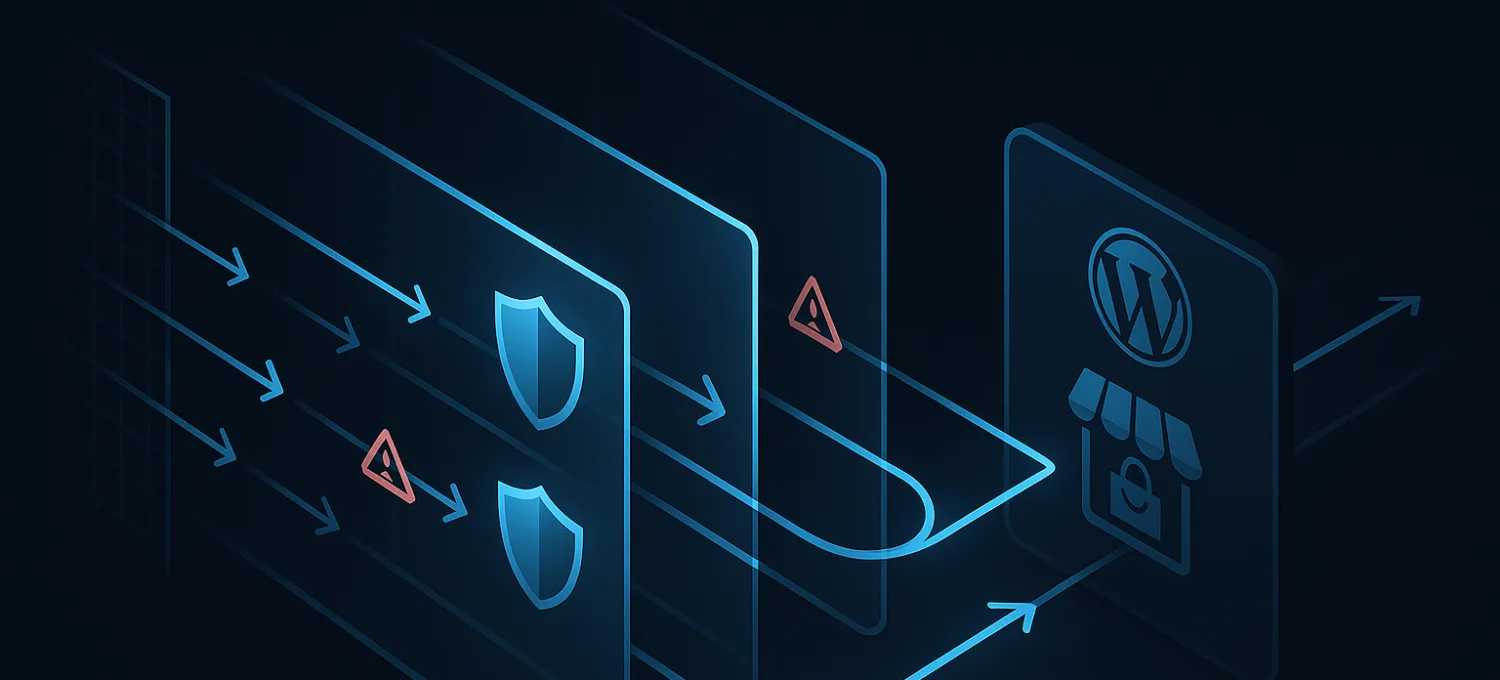
Internal Error Server Connection Terminated on WordPress: How to Diagnose It
The message internal error server connection terminated is frustrating because it sounds specific while telling you very little.
On WordPress and WooCommerce, it usually means a request died somewhere between the browser and the application. That "somewhere" matters. Sometimes the origin is overloaded. Sometimes PHP or the database is stalling. Sometimes a proxy, CDN, or WAF closes the request before WordPress finishes the work.
So the right first move is not to guess. It is to figure out which layer is actually terminating the request.
What This Error Usually Means
This message is rarely the root cause. It is a symptom.
Common realities behind it include:
- the origin server is slow or unhealthy
- PHP workers are exhausted
- the database is locked or overloaded
- an upstream proxy times out first
- a CDN or WAF interrupts a request path
- a bot surge is consuming dynamic application capacity
That is why the same site can look "mostly up" while key actions keep failing.
You may see:
- admin pages that hang
- checkout requests that stall
- login that works intermittently
- product pages that load while dynamic actions fail
Start by Narrowing the Failure
Before digging into logs, answer two quick questions.
Is It Global or Session-Specific?
If the issue affects:
- multiple browsers
- multiple networks
- normal visitors and admins
then you are likely dealing with a server-side or upstream problem.
If it is isolated to one browser, one extension set, or one local network, rule out the client side first.
Does It Hit Only Dynamic Routes?
If static pages load but login, cart, checkout, search, or admin routes fail, that points away from a general DNS or static delivery problem and toward:
- origin load
- application bottlenecks
- proxy timeout behavior
- bad traffic against expensive endpoints
That distinction speeds up the investigation.
Check the Browser and Network Layer Quickly
Do not stay here too long, but clear the obvious possibilities:
- try an incognito session
- disable extensions that alter requests
- test from another network
- inspect the exact request in browser dev tools
What you want to learn is whether the request is being cut off immediately or after waiting on the server.
If you see the same failure from multiple environments, move on. The problem is probably not local.
Check the Origin First
If you control the server, inspect the origin before blaming WordPress.
Look for:
- web server errors
- upstream timeout messages
- PHP-FPM exhaustion
- slow database queries
- worker saturation
- memory pressure during dynamic requests
The important question is simple: did the request reach origin, and if it did, did the origin actually fail?
If origin logs show nothing while users still hit the error, the request may be dying upstream.
Then Check the Middle Layer
This is where teams lose time.
A site can have a healthy origin and still fail because the request path is being interrupted by:
- a reverse proxy
- a CDN
- a WAF
- an upstream timeout rule
- a body-handling or header-handling mismatch
That matters especially when:
- direct-to-origin tests work
- proxied traffic fails
- only certain request types break
- uploads, admin actions, or checkout requests behave differently through the edge
If bypassing the edge makes the issue disappear, the application may not be the real culprit.
Consider Bad Traffic as the Real Root Cause
Some of the hardest cases are not simple crashes. The site stays partially alive while bad traffic consumes the resources dynamic routes need.
That can look like:
- login slowdowns
- admin instability
- WooCommerce checkout stalls
- random-looking timeouts during traffic bursts
The server is technically responding. It is just spending too much time on the wrong requests.
That is why "connection terminated" messages often get mistaken for hosting instability when the deeper problem is abusive request volume against expensive paths.
How to Separate Origin Trouble From Edge Trouble
A practical test sequence is:
- check whether static pages are healthy while dynamic routes fail
- compare proxied behavior with direct-origin behavior if you can do that safely
- inspect origin logs for matching failed requests
- look for timeout or block behavior in the CDN/WAF layer
- review whether suspicious traffic spikes line up with the failures
If origin never sees the broken request, the request is dying before WordPress.
If origin sees it and fails under load, the problem is in the application or infrastructure behind it.
Where FirePhage Fits
For WordPress and WooCommerce, the long-term answer is usually not just "add more server capacity."
If expensive routes are being stressed by junk traffic, the better answer is to reduce origin work before PHP and the database ever see the request.
That is where edge filtering, route-aware rate limiting, and bot mitigation help more than reactive origin tuning alone.
Final Take
Internal error server connection terminated is not a useful diagnosis by itself. It is a clue that the request path is breaking somewhere between the visitor and the application.
On WordPress, the right approach is to narrow the layer first:
- client
- origin
- proxy/CDN/WAF
- abusive traffic pressure
Once you know which layer is actually terminating the request, the fix gets much clearer.