
Resource Limit Is Reached on WordPress: How to Diagnose It Fast
The message resource limit is reached sounds simple, but it usually hides a messy cause.
Sometimes the host is right and the plan is too small. Sometimes the real issue is that the site is spending too many resources on the wrong work. That can include bad traffic, uncached dynamic routes, plugin-heavy PHP execution, cron bursts, or a database under pressure.
The right move is not to assume the fix is “upgrade hosting.” The right move is to figure out what is actually consuming the limit.
What This Error Usually Means
The host is throttling or limiting the account because one or more resource thresholds were crossed.
That can involve:
- CPU
- memory
- entry processes
- concurrent workers
- PHP execution time
The important part is that the error describes the symptom, not the workload that caused it.
What It Looks Like in Production
On WordPress and WooCommerce, this often shows up as:
- admin becoming slow or inconsistent
- checkout starting to fail
- pages loading partially
- some requests working while others time out
- hosting dashboards showing busy workers without a clean outage
The site may still answer some requests. It is just being squeezed by too much active work.
Start by Asking: Traffic or Application Work?
This is the fastest useful split.
If the problem aligns with unusual request volume, login abuse, bots, scraping, or dynamic browsing spikes, the issue may be traffic quality more than hosting size.
If the problem started after a deployment, plugin change, import, or scheduled task shift, the root cause may be application behavior.
You need that split early, because the fixes differ a lot.
Common Resource Drains on WordPress
The most common causes are:
- uncached dynamic traffic
- brute-force or login abuse
- search and filter floods
- expensive AJAX routes
- heavy plugin logic
- cron storms or background jobs
- database inefficiency under load
The trap is that all of these can look like “the server is weak” from the outside.
Why Upgrading the Plan Is Not Always the Answer
More resources can buy time, but they do not fix a bad traffic pattern or an inefficient route.
If the site keeps burning CPU and workers on the wrong requests, the bigger plan just gives the problem a larger runway.
That is why many WordPress sites feel briefly better after an upgrade and then degrade again when the same abusive or inefficient behavior returns.
How to Triage It Fast
Start with:
- hosting graphs and worker/process metrics
- request patterns in logs
- recent changes to plugins, imports, or cron behavior
- whether admin, login, search, cart, or checkout are degrading together
If several dynamic routes slow down at the same time, origin pressure is usually the real story.
Where FirePhage Fits
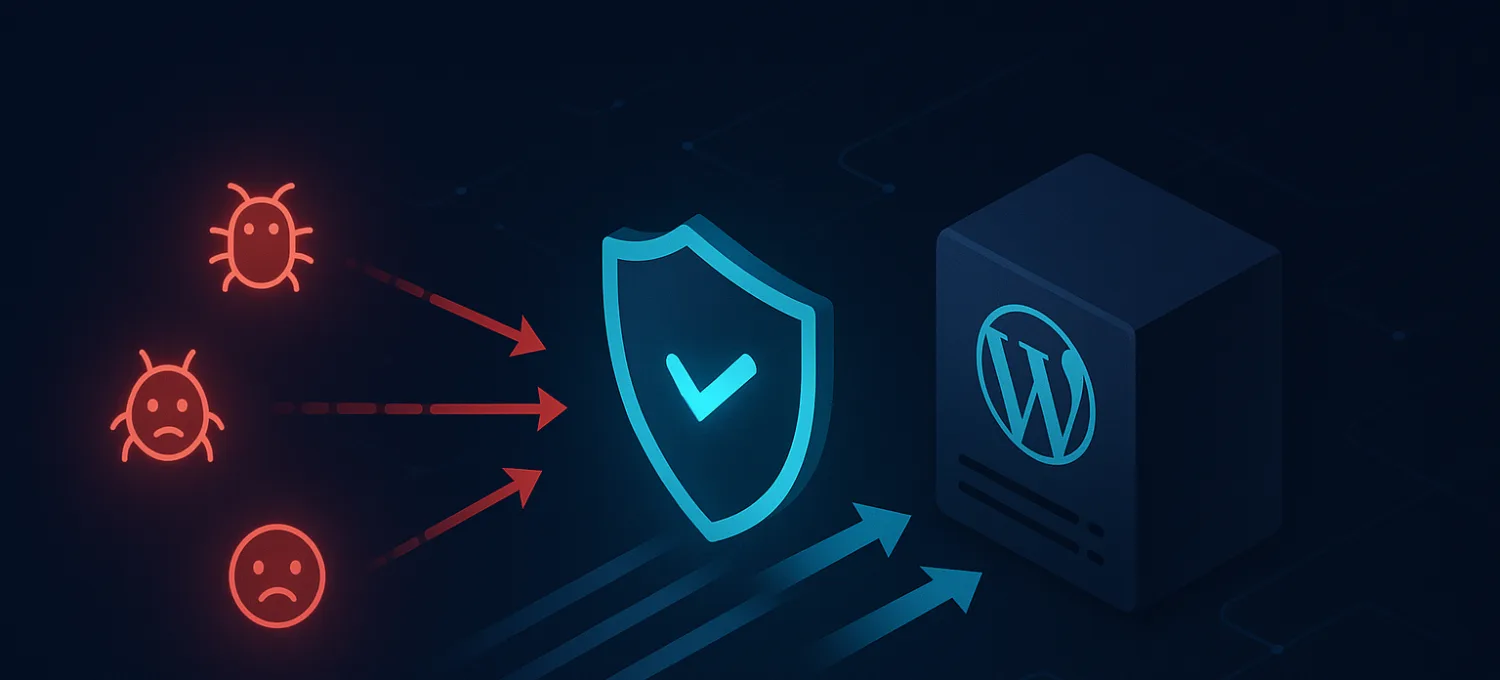
When the issue is traffic quality, the long-term answer is often to reduce origin work before WordPress has to do it.
That means protecting the routes that attract the most expensive junk traffic:
- login
- search
- filters
- checkout-adjacent endpoints
- AJAX-heavy paths
If the site stops paying for the wrong requests, resource-limit events become much less common.
Final Take
Resource limit is reached is not a root cause. It is the host telling you the site is doing more work than the account can safely handle.
The fastest path to a real fix is to identify whether that work comes from:
- bad traffic
- plugin or cron behavior
- dynamic route pressure
- genuine infrastructure undersizing
That is how you solve the workload instead of just reacting to the warning.