
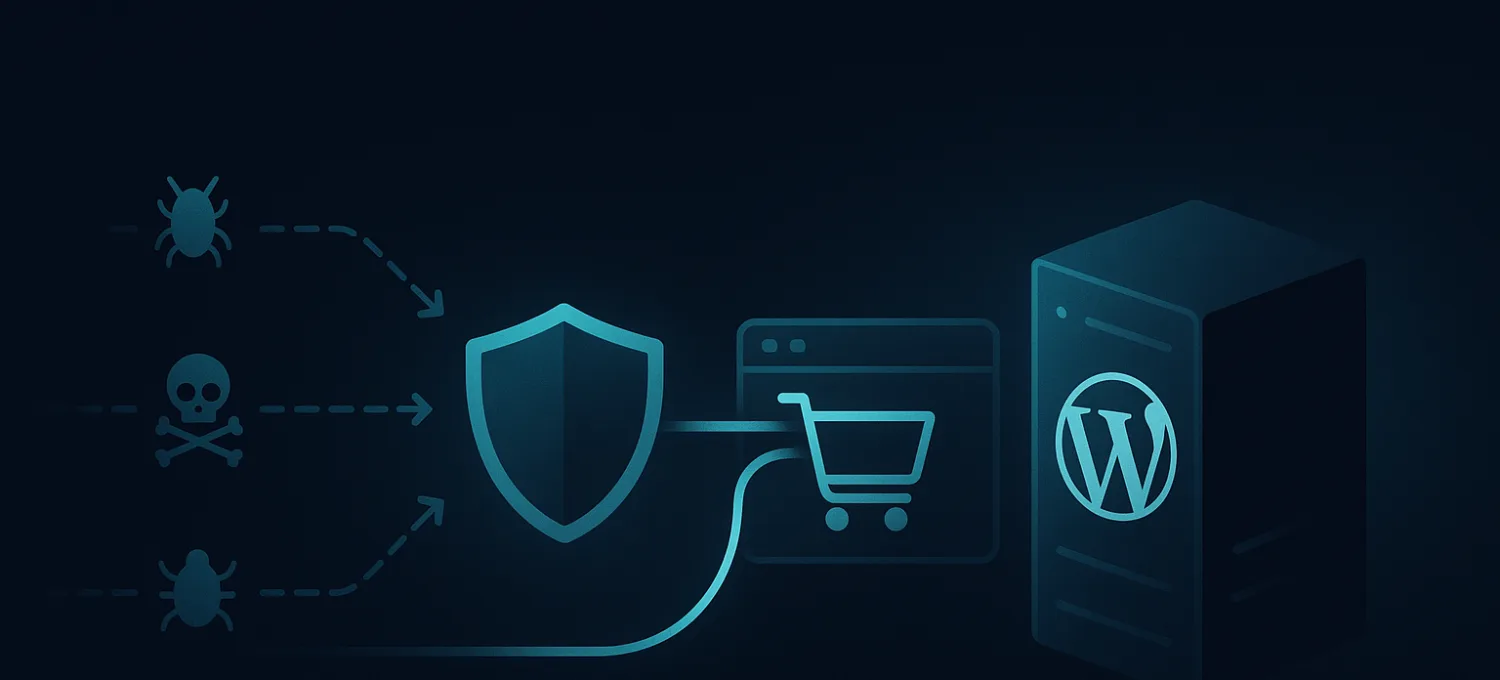
You open the site and it kind of works. The homepage loads for some visitors, checkout hangs for others, and the WordPress admin feels like it's moving through wet cement. Support tickets start with “the site is down,” but that’s not quite true.
A common point of confusion involves http status code 503. A 503 usually doesn't mean the server vanished. It means the server is still there, still reachable, and no longer willing to take on more work right now.
For WordPress and WooCommerce, that distinction matters. A store can stay half-alive for hours while bots hammer login, cart, search, or checkout endpoints. Customers see random failures. Staff sees slow admin screens. Search engines see instability. And if the condition drags on, the SEO fallout can outlast the incident itself. As Network Solutions notes about prolonged 503 instability and ranking impact, search bots tolerate temporary 503s, but prolonged issues can signal an unstable site and lead to ranking penalties that last for weeks.
The site isn’t down. It’s just slowly bleeding resources.
Table of Contents
- That Feeling When Your Site Is Up But Still Broken
- What an HTTP 503 Error Actually Means
- The Four Main Causes of 503 Errors on WordPress
- Why Automated Traffic Is a Hidden 503 Trigger
- How to Diagnose and Fix 503 Service Unavailable Errors
- Preventing 503s with an Edge-First Approach
That Feeling When Your Site Is Up But Still Broken
Most owners meet 503s in a messy, intermittent way.
A campaign goes out. Traffic rises. Or maybe traffic doesn’t rise much at all, but the wrong endpoints suddenly get hit over and over. Product pages still load, yet checkout starts failing. wp-admin loads eventually, but saving a product takes forever. The site is “up” in the shallow sense and broken in the only sense that matters.
That’s why 503s are easy to misread. People expect a hard failure. Instead, they get a degraded service that keeps accepting some requests while refusing others. On WordPress, that usually means the origin is under pressure and is trying to protect itself from a complete collapse.
The business damage is not limited to downtime
Intermittent 503s hurt more than availability graphs suggest.
A WooCommerce store can lose orders long before the homepage becomes unreachable. A publisher can watch crawlers reduce confidence in the site while editors are still technically able to log in. This is why treating 503 as a cosmetic server message is a mistake.
- Customers abandon unstable sessions: They don't care whether the error is temporary. They care that checkout failed.
- Admins waste time in the wrong place: They start tweaking plugins while the underlying issue is request pressure.
- Search engines notice repeated instability: Temporary is tolerated. Ongoing instability isn't.
When users say “the site feels off,” they’re often describing resource exhaustion before your monitoring labels it an outage.
What 503 usually means in practice
In production, a 503 is often a stress signal.
The server still has enough function left to answer with a status code, which is better than a total crash. But it’s also telling you that request handling has crossed a line. The important question isn't just “why did I get a 503?” It’s “what kind of work is my stack being forced to do right now?”
That question leads to better fixes than “add another plugin” or “restart PHP and hope.”
What an HTTP 503 Error Actually Means
The clean definition is simple. HTTP 503 Service Unavailable means the server is temporarily unable to handle the request.
That temporary aspect is the whole point. The 503 code was defined in the original HTTP/1.0 specification in 1996 to signal temporary overload and recommend Retry-After. In other words, this wasn't invented as a vague failure bucket. It exists so servers can say: I’m reachable, I understand the request, but taking more work right now would make things worse.
Temporary is the key word
A 500 usually means something broke internally in a more general sense. A 503 is narrower. It says the service is unavailable for now.
That “for now” matters to browsers, bots, API clients, and search crawlers. It's also why the Retry-After header exists. When present, it tells the client when it should try again instead of immediately retrying and making the overload worse.
Imagine a cashier line that stops accepting new customers for a moment so the queue can shrink. The shop didn't disappear. It just can't process another person without jamming the system.
Why servers send 503 on purpose
A lot of site owners assume every 503 means the stack failed unexpectedly. Not always.
Sometimes the 503 is the least bad outcome. The server, proxy, or upstream system is refusing more work because CPU, memory, connection pools, or backend dependencies are already too busy. That's not graceful from the visitor’s perspective, but it’s often what prevents a full pileup.
- Good interpretation: the system is applying backpressure
- Bad interpretation: “the internet is broken”
- Useful next step: find out what requests are expensive and why they weren't filtered sooner
Practical rule: A 503 means the request reached a server that still had enough control left to say no.
Why this matters for WordPress
WordPress isn't just serving files. On uncached routes, it’s booting PHP, loading plugins, talking to the database, and sometimes waiting on third-party services.
So when a 503 appears, the question isn't only whether the host has enough horsepower. It's whether the origin is doing work that should never have reached it in the first place.
The Four Main Causes of 503 Errors on WordPress
Some 503 guides lump every cause into “server overloaded.” That’s too shallow to be useful. On WordPress, the cause usually falls into one of a few repeatable patterns.
A 503 is backpressure, not mystery
In high-traffic WordPress environments, 503s often happen when the origin exhausts CPU, memory, or connection pools, and upstream services can contribute too. Even a CDN can relay a 503 from the origin if the backend crosses request rate limits. MDN’s reference notes this behavior and includes Amazon S3’s example limit of 5,500 GET requests per second per prefix in one such scenario, as described in MDN’s explanation of 503 behavior and origin overload.
That matters because a lot of teams blame the front layer when the underlying issue sits deeper in the request path.
Four patterns that show up in production
-
Legitimate traffic spikes: Sometimes the traffic is real and desirable. A campaign lands, a product drop gets shared, or a post starts circulating. If most of those requests hit cached pages, the site may stay fine. If they hit search, cart, account, or checkout, the origin suddenly has to do real work per request.
-
Planned maintenance: Maintenance mode can produce a 503 on purpose. This is normal if updates are coordinated and brief. It becomes a problem when a maintenance state lingers because an update hung, a deployment failed, or a background process never completed.
-
Backend application failures: This is common on plugin-heavy WordPress sites. One extension adds a slow database query. Another waits on a payment, shipping, or inventory API. A theme function does something wasteful on every page load. Visitors only see “Service Unavailable,” but the actual problem is that request time balloons until workers back up.
A short walkthrough helps here:
<iframe width="100%" style="aspect-ratio: 16 / 9;" src="https://www.youtube.com/embed/XZwKBK89Ot8" frameborder="0" allow="autoplay; encrypted-media" allowfullscreen></iframe>- Resource exhaustion from inefficient or malicious bots: This is the cause people miss most often. A bot doesn't need huge raw bandwidth to trigger pain. It just needs to repeatedly hit expensive endpoints that bypass cache and force PHP, database, and session work.
How these causes look from the outside
The same status code can mask very different failures.
| Cause | What users notice | What operators often miss |
|---|---|---|
| Legit traffic surge | Some pages load, dynamic ones fail | Cache hit ratio dropped on key routes |
| Maintenance issue | Whole site or admin returns 503 | A stuck update left maintenance mode active |
| Backend failure | Slow requests before visible errors | Plugin or API timeout filled worker queues |
| Bot pressure | Random failures, login pain, broken checkout | Traffic volume looked “normal,” but request type was toxic |
When the same site serves blog pages fine but chokes on login or checkout, stop thinking in pageviews and start thinking in workload per request.
Why Automated Traffic Is a Hidden 503 Trigger
The common mistake is treating all traffic as equal. It isn't.
A cached blog post view is cheap. A request to login, cart, checkout, search, or an account endpoint is expensive. It wakes up WordPress, runs plugin code, touches sessions, and often hits the database. A smaller volume of that kind of traffic can do more damage than a much larger wave of cacheable requests.
Not all requests cost the same
WooCommerce suffers the consequences.
Bots don’t need to “take down” the homepage. They can sit on the expensive parts of the stack and drain resources slowly. Login abuse, fake account creation, add-to-cart abuse, checkout probing, inventory scraping, and repeated search requests all create work that can’t be offloaded as easily as static content.
That’s the missing distinction in most 503 advice. As Scrapfly’s discussion of 503 causes and bot-driven request floods points out, most guides fail to separate DDoS or bot-triggered 503s from normal maintenance or infrastructure issues.
The site isn’t down. It’s just slowly bleeding resources to traffic that will never convert.
For a deeper look at that pattern, see FirePhage’s write-up on why bot traffic hurts WordPress sites even when they stay online.
What bot driven 503s look like
This kind of incident has a recognizable shape:
- Login path gets hot: Staff reports wp-admin delays, failed logins, or random lockouts.
- Checkout turns flaky: Real customers hit payment or order submission errors while the store still looks mostly alive.
- Server metrics mislead: Overall visits don't look terrifying, but PHP workers, database activity, or connection pools stay pinned.
- Plugins don't save you fast enough: A plugin running inside WordPress still consumes origin resources while deciding whether to block a request.
That last point matters. If bad traffic reaches PHP, you already paid for part of the damage.
Why the diagnosis often goes wrong
Teams see 503 and start hunting for broken code. Sometimes they’re right. Often they’re missing a traffic-quality problem.
If the issue is automated traffic, adding more origin capacity can help for a while, but it doesn't fix the underlying mismatch. You’re still asking WordPress to inspect and reject junk after the junk has already consumed compute.
How to Diagnose and Fix 503 Service Unavailable Errors
When a 503 starts appearing, don't begin by reinstalling half your stack. Start by figuring out whether the server is overloaded by legitimate demand, stuck in maintenance, broken by application behavior, or flooded with expensive automated requests.
Where to look first
Look in the places that show contention, not just error banners.
- Web server logs: Check Nginx or Apache error logs for bursts of 503s, upstream failures, or worker exhaustion.
- WordPress debug logging: Enable WP_DEBUG and WP_DEBUG_LOG long enough to catch plugin errors, fatal warnings, or failed external calls.
- Hosting metrics: CPU saturation, memory pressure, and exhausted process pools are strong clues, but they don't identify the request type by themselves.
- Request path patterns: Compare failing routes. If login, cart, checkout, search, or account pages are affected more than cached pages, suspect expensive dynamic traffic.
- Proxy and edge behavior: If you sit behind a proxy, understand whether it generated the 503 itself or passed it through from the origin. FirePhage’s article on what a reverse proxy is and how it sits between visitors and your server is useful context here.
Check the failing endpoint before you check your feelings. “High traffic” is not a diagnosis.
503 Error Symptom Diagnostic Chart
| Symptom / Log Entry | Likely Cause | First Place to Look |
|---|---|---|
| Homepage works, checkout fails | Dynamic route overload or bot abuse | WooCommerce logs, request paths, server process usage |
| wp-admin is extremely slow | Login abuse, plugin overhead, exhausted PHP workers | Access logs, auth requests, PHP-FPM status |
| 503 started after updates | Stuck maintenance or plugin conflict | WordPress debug log, recent changes, plugin/theme rollback |
| 503 appears during promotion or launch | Legit spike hitting uncached routes | Cache behavior, origin concurrency, database load |
| CDN shows 503 but edge is healthy | Origin or upstream service returned 503 | Origin logs, object storage/API dependencies |
| Random bursts of 503 with odd user patterns | Automated traffic targeting expensive endpoints | Access logs, WAF events, rate-limited paths |
What usually works and what usually doesn't
Some fixes are worth doing immediately:
- Disable or isolate the offender: If the error began after a plugin, theme, or deployment change, roll it back.
- Reduce backend work: Optimize slow queries, trim plugin bloat, and avoid making live requests to third-party services inside critical paths when possible.
- Increase headroom carefully: More PHP workers, memory, or better hosting can buy time if the workload is legitimate.
- Use caching correctly: Full-page caching helps where pages are cacheable. It won't solve login, checkout, or account abuse.
- Return Retry-After when appropriate: If maintenance is real and temporary, communicate that cleanly to clients and crawlers.
What usually disappoints:
- Blocking a few IPs manually: Attack traffic rotates. Manual blocking rarely keeps up.
- Adding another security plugin at origin: If the server is already exhausted, one more PHP-based control can become part of the problem.
- Assuming more server power fixes everything: It helps with scale. It doesn't fix bad request quality.
A useful habit is to separate capacity problems from filtering problems. Capacity problems need tuning and scaling. Filtering problems need bad requests stopped earlier.
Preventing 503s with an Edge-First Approach
The cleanest way to reduce 503s is to stop treating them as only a server tuning issue.
A healthy origin is not just an origin with more CPU. It’s an origin that receives fewer pointless requests. That means filtering abusive traffic before WordPress, PHP, and MySQL have to spend resources inspecting it.
An edge-first setup changes the order of work:
- Block hostile traffic before origin processing: Login abuse, scraping, and request floods should be filtered upstream.
- Cache what should be cheap: Static and cacheable pages shouldn't compete with checkout for origin resources.
- Rate-limit sensitive routes: Cart, checkout, login, and account endpoints need stricter controls than brochure pages.
- Preserve visibility: You still need uptime checks and region-aware monitoring to see whether the origin is stable. FirePhage’s uptime monitoring service reflects that operational side well.
This is why edge protection works better than last-minute plugin defenses during pressure spikes. The server never wins by doing extra work for fake users.
Real performance work starts by deciding which requests deserve server time.
If your WordPress or WooCommerce site keeps drifting into slowdowns, intermittent checkout failures, or recurring 503s, FirePhage is built for exactly that kind of pressure. It filters hostile traffic before it reaches origin, adds managed edge protection and caching, and gives you cleaner visibility into whether you're dealing with demand, abuse, or both.