
WordPress Malware Cleanup: How to Remove Malware and Secure Your Site
A hacked WordPress site rarely fails in a dramatic way. More often, it gets strange.
The admin slows down. A few pages start ranking for terms you never wrote. Checkout feels heavier than usual. Support messages drop off because forms break intermittently, not completely. On WooCommerce stores, the first visible symptom is often noise. Fake orders, login abuse, odd spikes in uncached requests, or customers saying they saw a redirect you can’t reproduce while logged in.
That’s why a solid WordPress malware cleanup process matters. But cleaning is only half the job. If you remove the payload and leave the attack path open, the site comes back infected, sometimes within hours.
This is the practical process that works in production. Detect what changed. Clean files and database entries carefully. Then stop the traffic and exploit attempts that caused the compromise in the first place.
Table of Contents
- Your Site Isn't Down It's Just Infected
- First Signs of Trouble How to Spot an Infection
- Isolate and Back Up Before You Clean
- The Malware Cleanup Process Scanners Manual Checks and Databases
- Beyond the Clean Preventing Reinfection at the Edge
- Frequently Asked Questions About WordPress Malware Removal
Your Site Isn't Down It's Just Infected
Most infected WordPress sites are still online.
That’s what makes them dangerous. The owner assumes it’s a performance issue, a plugin conflict, or a flaky host. Meanwhile the infection keeps running unnoticed in the background.
I usually see the same pattern first. The backend feels sticky. Publishing takes longer. Search snippets start showing garbage text. Someone on the team notices a browser warning or gets sent to a spam page from mobile, but nobody else can reproduce it because the redirect only fires for certain visitors.
The malware isn't trying to kill your server. It's just living in it.
That’s normal behavior for modern WordPress infections. Attackers want persistence. They want stolen sessions, spam pages, injected links, email abuse, fake user creation, payment skimming, or a foothold they can reuse later.
What the infection often looks like in practice
A low-grade infection usually shows up as a cluster of small failures:
- Admin lag: Dashboard screens, plugin pages, and media library actions take longer than usual.
- SEO weirdness: Search results show foreign characters, junk page titles, or spammy snippets.
- Partial breakage: Forms work sometimes. Password resets arrive late. Random pages redirect only for logged-out users.
- Resource bleed: The site stays online, but origin load climbs because malicious scripts, bad bots, or scheduled tasks keep firing.
The site isn’t down. It’s just slowly bleeding resources.
That last part matters. A compromised WordPress site often behaves like a security problem disguised as a performance problem. If you only tune caching or add more server capacity, you’re treating the symptom, not the cause.
Why this is so common
WordPress is attacked at scale. Over 400,000 WordPress websites are hacked every month, with infections often hiding across cron services, databases, and uploads, as noted in this WordPress malware analysis video.
That scale explains why so many infections look routine. Automated tools find old plugins, weak credentials, or upload paths. Once inside, they don’t need to deface the homepage. They only need enough access to stay resident and keep using your site.
If the site feels wrong but not broken, take that seriously. The operational symptoms often match what happens when bot traffic hurts WordPress sites even when they stay online.
First Signs of Trouble How to Spot an Infection
Don’t start by guessing which plugin caused it. Start by sorting symptoms by where they appear.
That makes the investigation faster, especially on WooCommerce sites where “checkout is slow” can mean anything from bot abuse to injected code in a template override.
User facing symptoms
Visitors usually notice compromise before admins do.
- Unexpected redirects: Logged-out users land on unrelated pages, spam domains, or fake update prompts.
- Injected content: You see spam links, hidden text blocks, or scripts embedded in posts and templates.
- Browser warnings: Search engines or browsers flag the site as unsafe.
- Traffic quality changes: Organic traffic drops suddenly, or sessions look abnormal because users bounce after being redirected.
If you suspect this, test from a separate device in a clean browser session. Many infections intentionally avoid showing themselves to logged-in admins.
Admin area symptoms
The dashboard often tells on the attacker.
- Unknown administrators: New users appear with administrative privileges.
- Changed plugin or theme files: Files show recent modifications that nobody on the team made.
- Settings drift: Home URL, admin email, or rewrite behavior changes without a legitimate deployment.
- Security plugins acting oddly: Scans fail, stop early, or report results that don’t match what visitors experience.
If WordPress suddenly has a new administrator, treat the site as compromised until proven otherwise.
This is also where store owners miss e-commerce-specific abuse. Product pages might look fine while checkout or account pages are being manipulated behind the scenes.
Server level symptoms
If the host is complaining, listen.
- CPU spikes: Usage rises even when marketing campaigns or real traffic don’t explain it.
- Outbound mail abuse: The site starts sending spam or transactional mail volume looks wrong.
- New scheduled tasks: Cron jobs appear to re-download payloads or trigger recurring scripts.
- Uploads behaving suspiciously: Files appear in places they shouldn’t, especially executable content in media paths.
A lot of site owners only see these clues after the host throttles the account or sends an abuse notice.
WooCommerce symptoms that are easy to misread
WooCommerce adds another layer because attacks often hide inside “business problems.”
- Fake orders: Attackers or bots hammer checkout, creating noise that looks like customer activity.
- Slow checkout: That can be malware, bot pressure, or both.
- Account abuse: Login pages get hammered, which drags response time down for actual buyers.
- Skimming or cart tampering: Standard scanners often miss e-commerce-specific threats like cart injections or payment skimmers. On busy stores, plugin-based cleaners can also increase origin load by 20-30% during scans, which can make downtime worse, according to the plugin discussion on WordPress.org.
Quick triage table
| Where you notice it | Common sign | What it usually means |
|---|---|---|
| Front end | Redirects, spam, warnings | Active payload affecting visitors |
| Dashboard | Unknown admins, file changes | Persistence or credential compromise |
| Server | CPU spikes, cron abuse, spam mail | Background execution or reinfection |
| WooCommerce | Fake orders, slow checkout | Bot abuse, injected logic, or both |
The point isn’t to diagnose everything from one clue. It’s to stop treating the incident like random slowness and start treating it like a compromise.
Isolate and Back Up Before You Clean
The worst cleanup mistakes happen in a rush.
Someone starts deleting files from wp-content, disables half the stack, and overwrites evidence before they understand what changed. That’s how a fix turns into a longer outage.
Isolate first
If the site is actively redirecting, serving malicious content, or processing suspicious traffic, put it behind a temporary maintenance page or otherwise limit exposure while you work.
The goal is simple:
- Protect visitors from malicious scripts and redirects
- Reduce further indexing of poisoned pages
- Stop new writes while you inspect files and database tables
- Create a stable state for cleanup
For stores, this decision is uncomfortable. Taking checkout offline costs money. Leaving a compromised checkout live can cost more.
Practical rule: If you can’t explain the behavior yet, don’t keep sending fresh traffic through it.
Back up the infected state
Back up everything before you clean. Not because it’s safe to restore blindly, but because you may need to compare files, inspect timestamps, recover legitimate content, or prove what happened.
Create copies of:
- Site files
- Database
- Access and error logs if available
- A list of active plugins and themes
- Screenshots of visible symptoms
Keep that backup separate from your normal restore points. Label it clearly as infected.
A lot of cleanup work depends on diffing bad against known-good. If you overwrite the compromised state too early, you lose the trail.
Don’t trust convenience over control
Avoid casual “repair” steps before you’ve preserved evidence. Reinstalling plugins at random or deleting suspicious files from the media library can remove the very artifacts that show how the attacker stayed persistent.
If you’re moving traffic or staging protection before cleanup, careful cutover matters. This guide on how to move DNS to a new edge provider without causing downtime explains the operational side well.
A short walkthrough on incident handling can also help frame the sequence before cleanup starts:
<iframe width="100%" style="aspect-ratio: 16 / 9;" src="https://www.youtube.com/embed/RA4MCZPtrbw" frameborder="0" allow="autoplay; encrypted-media" allowfullscreen></iframe>The Malware Cleanup Process Scanners Manual Checks and Databases
A good wordpress malware cleaner speeds up response. It doesn’t replace judgment.
The safest workflow uses three layers. Scan first to find the obvious and the hidden. Verify files manually so you know what changed. Then inspect the database, because plenty of WordPress infections survive there after the filesystem looks clean.
Start with a scanner that can actually see the infection
Scanner quality varies a lot.
In a controlled test across 50 WordPress hack types, MalCare detected 91% of infections, compared with Wordfence at 61% and Sucuri at 37%. The same test noted an automated cleanup time of about 5 minutes, while manual fixes often take 2-8 hours and carry a 40-50% reinfection rate. The benchmark is summarized in this MalCare cleanup comparison.
That doesn’t mean one button solves every incident. It means detection quality matters, and a weak scanner creates false confidence.
Use the scanner to answer practical questions:
- Which files are flagged?
- Are there payloads in uploads, theme files, or plugin directories?
- Are there signs of database injections?
- Is the infection broad or localized?
If the scanner gives file paths and code snippets, save them.
Manual file checks catch what automation can miss
Scanners are the first pass. File integrity checks are the second.
This is the manual process that works reliably:
- Get clean copies of WordPress core, the active theme, and every active plugin from trusted sources.
- Compare directories against the infected site.
- Review differences instead of bulk deleting everything unfamiliar.
- Replace compromised core files with clean originals.
- Remove abandoned plugins or themes you don’t need.
Be careful with custom themes and mu-plugins. A diff tool will show differences, but you still need to know which changes are legitimate project code and which are injected junk.
Where attackers usually hide in files
These paths deserve extra attention:
wp-content/uploadsfor executable files or disguised payloads- Theme folders for injected footer, header, or template code
- Plugin directories for modified files inside old or abandoned plugins
- Root files like configuration and bootstrap paths
- Dropper files with vague names designed to blend into legitimate code
The common mistake is deleting an entire file when only a malicious fragment was inserted. That can break the site fast.
Database inspection is not optional
A lot of WordPress infections persist in the database.
Check the tables that commonly carry user control, content injection, and persistent settings:
| Table area | What to look for |
|---|---|
wp_users |
Unknown admin users or altered account data |
wp_options |
Suspicious autoloaded values, injected scripts, changed URLs |
wp_posts |
Hidden links, spam blocks, malicious scripts or iframe content |
Also inspect store-related tables if you run WooCommerce. Attackers don’t always hide in page templates. Sometimes they hide in content, options, or order-related data that gets rendered conditionally.
Clean files can still serve malicious output if the database is poisoned.
A practical cleanup sequence
A solid sequence looks like this:
- Run the scanner and export or note findings
- Freeze changes so no one updates plugins mid-incident
- Replace WordPress core from a clean source
- Review themes and plugins one by one
- Inspect the database for injected code and unauthorized users
- Re-scan after each major cleanup step
- Test public pages, admin, forms, and checkout flows
- Watch logs for recurring requests or regenerated files
This is slower than panic-deleting files, but it’s what prevents accidental damage.
If the infection survives after clean files and database review, assume one of three things is still true: a hidden backdoor remains, credentials are compromised, or the attacker is re-entering through the same exposed path.
Beyond the Clean Preventing Reinfection at the Edge
Cleaning malware removes the current payload. It does not remove the reason the site got infected.
That’s why so many “fixed” WordPress sites fall over again. The files are clean for a moment, but the login abuse, exploit scanning, malicious bots, and reinfection path keep hitting the origin.
Clean the site, then close the door
After cleanup, rotate anything the attacker may have touched.
That usually means:
- WordPress admin credentials
- Hosting and database credentials
- API keys and integration secrets
- WordPress salts
- Unused users, plugins, themes, and old access paths
Then check the site like an attacker would. Are old plugins still exposed? Is login traffic still abusive? Are bots hammering endpoints that WordPress has to process in full?
Why plugin-only defense falls short
A plugin-based firewall runs inside the application it’s trying to protect.
That means bad requests still reach WordPress, PHP still wakes up, and the origin still spends resources deciding what to block. On a quiet brochure site, that may be acceptable. On a busy WooCommerce store, it becomes expensive fast.
The better model is to stop hostile traffic before WordPress touches it.
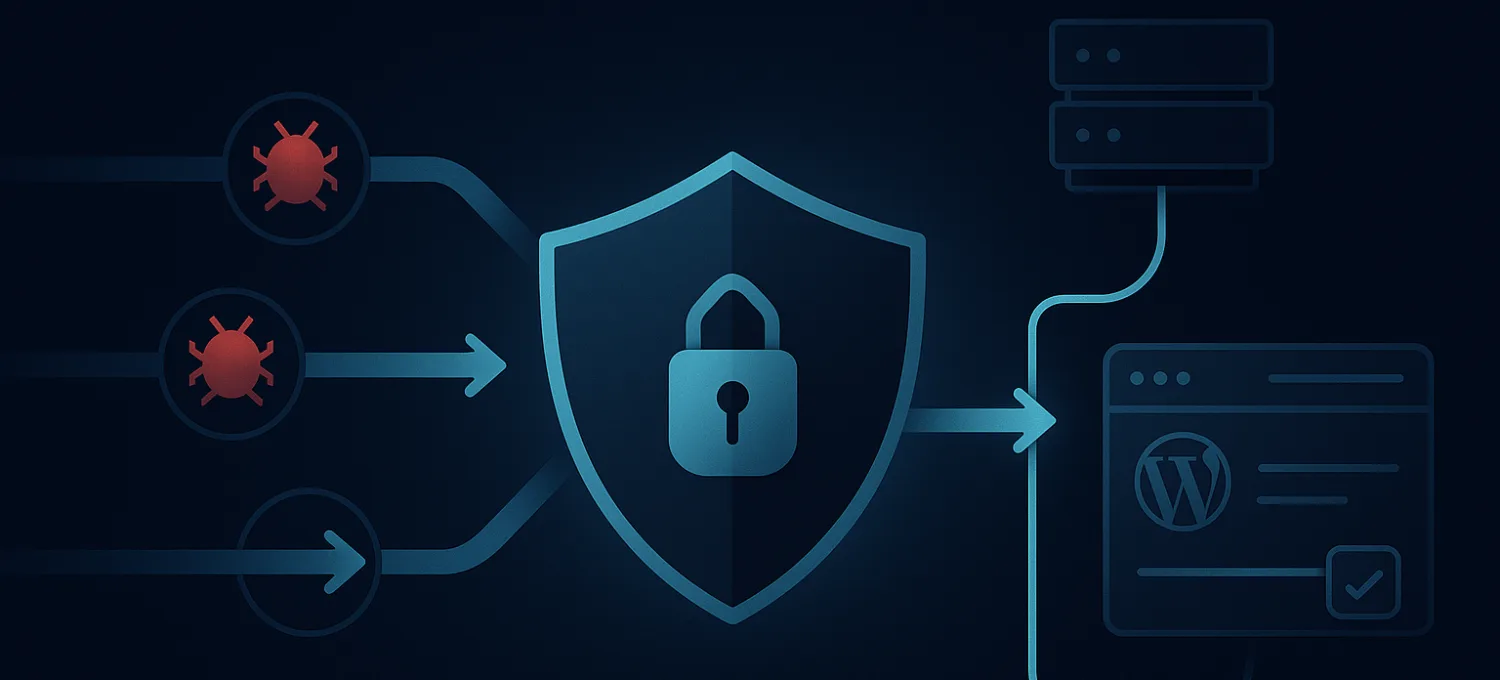
That’s what edge protection does. A managed WAF, CDN, bot filtering, and DDoS controls sit in front of the origin. They separate real customers from automation before the request reaches your stack.
Your server should spend its time serving users, not arguing with bots.
Why this matters after malware removal
Industry reports show 30-50% of cleaned sites are re-hacked within months due to overlooked vectors like cron job infections. Edge platforms that filter bots before they reach the origin have been shown to reduce these reinfections by over 40% on WooCommerce stores, according to CleanTalk’s discussion of WordPress malware removal and reinfection.
That’s the operational shift most guides miss.
If the original problem involved login abuse, exploit probing, fake orders, or scraping pressure, then the durable fix isn’t only a better wordpress malware cleaner. It’s moving the fight away from the origin so WordPress handles fewer hostile requests in the first place.
What good prevention actually looks like
The strongest post-cleanup setup usually includes:
- Edge filtering: Block exploit probes, abusive login traffic, and obvious bot patterns before they hit PHP.
- Selective caching: Keep anonymous traffic off the origin while bypassing where sessions or carts require it.
- Readable monitoring: Watch attack patterns, origin health, and uptime from outside the server.
- Hardening in WordPress: Remove stale code, tighten roles, and keep updates disciplined.
If you want a practical checklist for that layer, this guide on steps to strengthen WordPress edge security is a good next move.
Frequently Asked Questions About WordPress Malware Removal
Can I be sure the malware is completely gone
You can get confident. You usually can’t get absolute certainty from a single scan.
Use multiple checks:
- re-scan with your chosen tool
- verify core, theme, and plugin files against clean copies
- inspect the database for injected content
- review logs for recurring suspicious requests
- watch for regenerated files or reappearing admin users
If the same indicators return, the site wasn’t fully cleaned or the entry path is still open.
Should I use a plugin or hire someone
It depends on the site and your comfort level.
A strong scanner and careful manual review are enough for some incidents. If the site stores customer data, processes orders, has recurring reinfections, or supports multiple stakeholders, expert help is often the safer path.
The hard part usually isn’t deleting malware. It’s finding persistence.
Will removing malware fix a Google warning
Not immediately in every case.
First remove the infection completely. Then resolve any remaining spam pages or redirects. After that, request review through the relevant search or browser safety systems.
The warning may persist for a while after cleanup. That lag doesn’t always mean the cleanup failed.
Why does the site keep getting hacked after I cleaned it
Usually one of these is still true:
- A backdoor remains
- A vulnerable plugin or theme is still active
- Credentials were stolen and never rotated
- Scheduled reinfection is still happening
- Attack traffic is still reaching the site unchecked
Reinfection is rarely random. Something is still open.
Can a wordpress malware cleaner break my site
Yes, especially if cleanup is aggressive or the tool misidentifies custom code.
That’s why backups, diffs, and staged testing matter. It’s also why deleting suspicious files manually without comparison is risky. Attackers often inject snippets into legitimate files, and removing the whole file can break theme logic, plugin behavior, or checkout flows.
Does malware removal also fix slow checkout
Sometimes, but not automatically.
If hidden scripts or abusive bot traffic are causing the slowdown, cleanup helps. If the store is still getting hammered by automated requests after the infection is removed, performance problems can continue.
That’s the line many store owners miss. Removing malware fixes the compromise. Filtering bad traffic fixes the pressure.
If you’re done playing defense inside WordPress, FirePhage is built for the layer that matters most after cleanup. It puts a managed WAF, bot filtering, CDN, DDoS mitigation, uptime monitoring, and WordPress-aware edge protection in front of your site so hostile traffic gets filtered before it burns origin resources. For store owners and agencies, that means fewer fake orders, less login abuse, and a cleaner path from “site recovered” to “site stays recovered.”